


By @tomsguide
Publication Date: 2025-12-02 08:30:00
If you’re looking for a voice assistant for your iPhone that actually understands what you mean and provides hands-free help throughout your day, Perplexity Voice should be on your radar. Setting up a shortcut to Perplexity Voice on your phone means fast searches, booking reservations, and sending emails all through voice commands.
While Perplexity Voice can’t fully replace Siri for complete iPhone control just yet, you can take advantage of its smarter and more conversational responses in the meantime. Here’s how to set it up.
1. Get Perplexity
(Image: © Tom’s Guide )
For this to work you’ll need to install the latest version of the Perplexity app on your phone first. You can get it from the App Store for free here.
2. Open Shortcuts


(Image: © Tom’s Guide)
Next, you’ll want to open your Shortcuts app, which comes default with iOS.
3. Navigate to Perplexity
(Image: © Tom’s Guide)
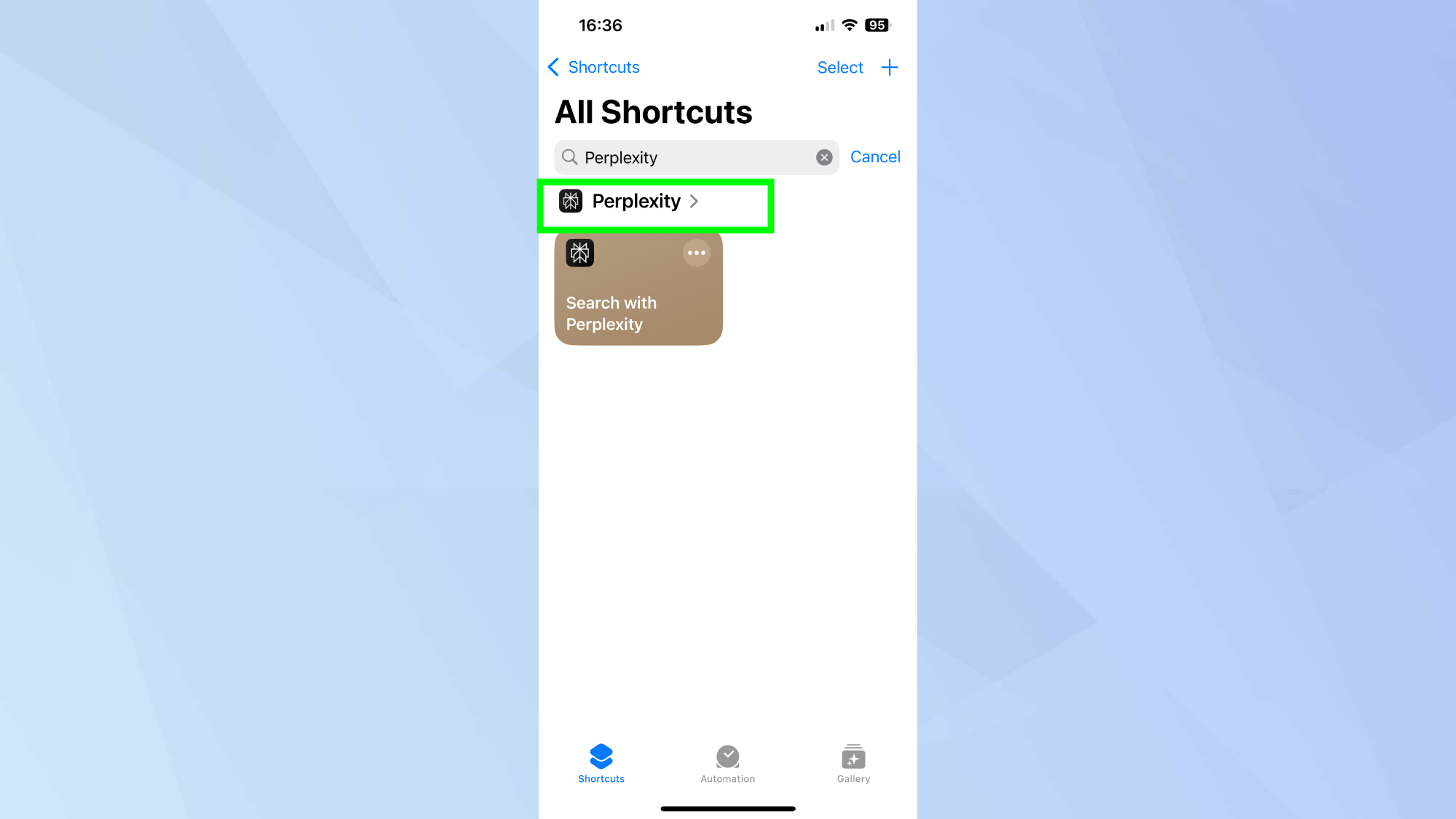
Scroll down through the listed apps, sorted in alphabetical order, until you reach Perplexity. Alternatively you can use the search bar. Then tap the app.
4. Start voice mode
(Image: © Tom’s Guide)
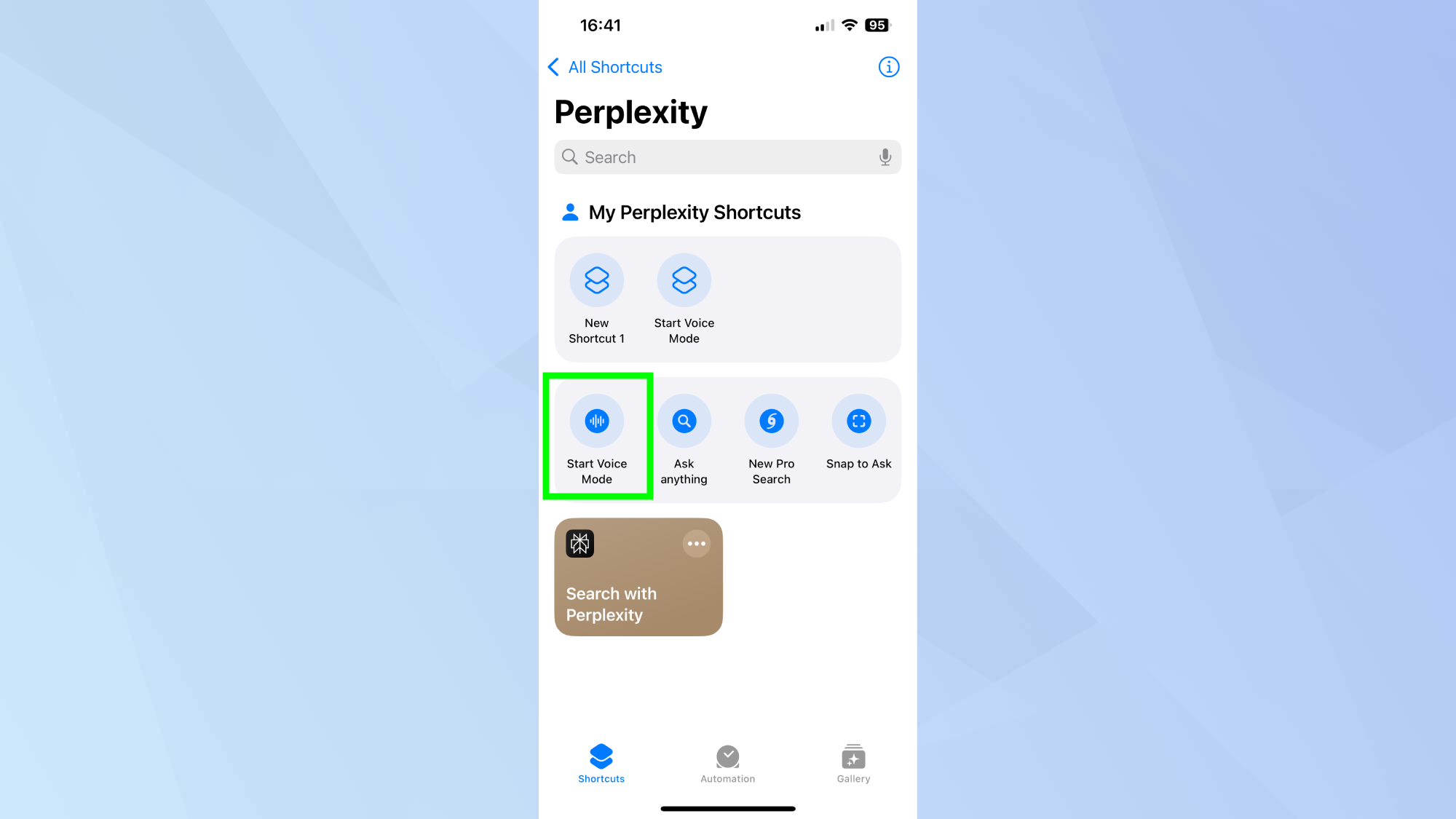
Tap start voice mode to instantly launch Perplexity’s voice mode.
5. Return to Shortcuts
(Image: © Tom’s Guide)
To speed up this process and pin this shortcut to your home screen, return to your Shortcuts app.
6. Create a new shortcut
(Image: © Tom’s Guide)
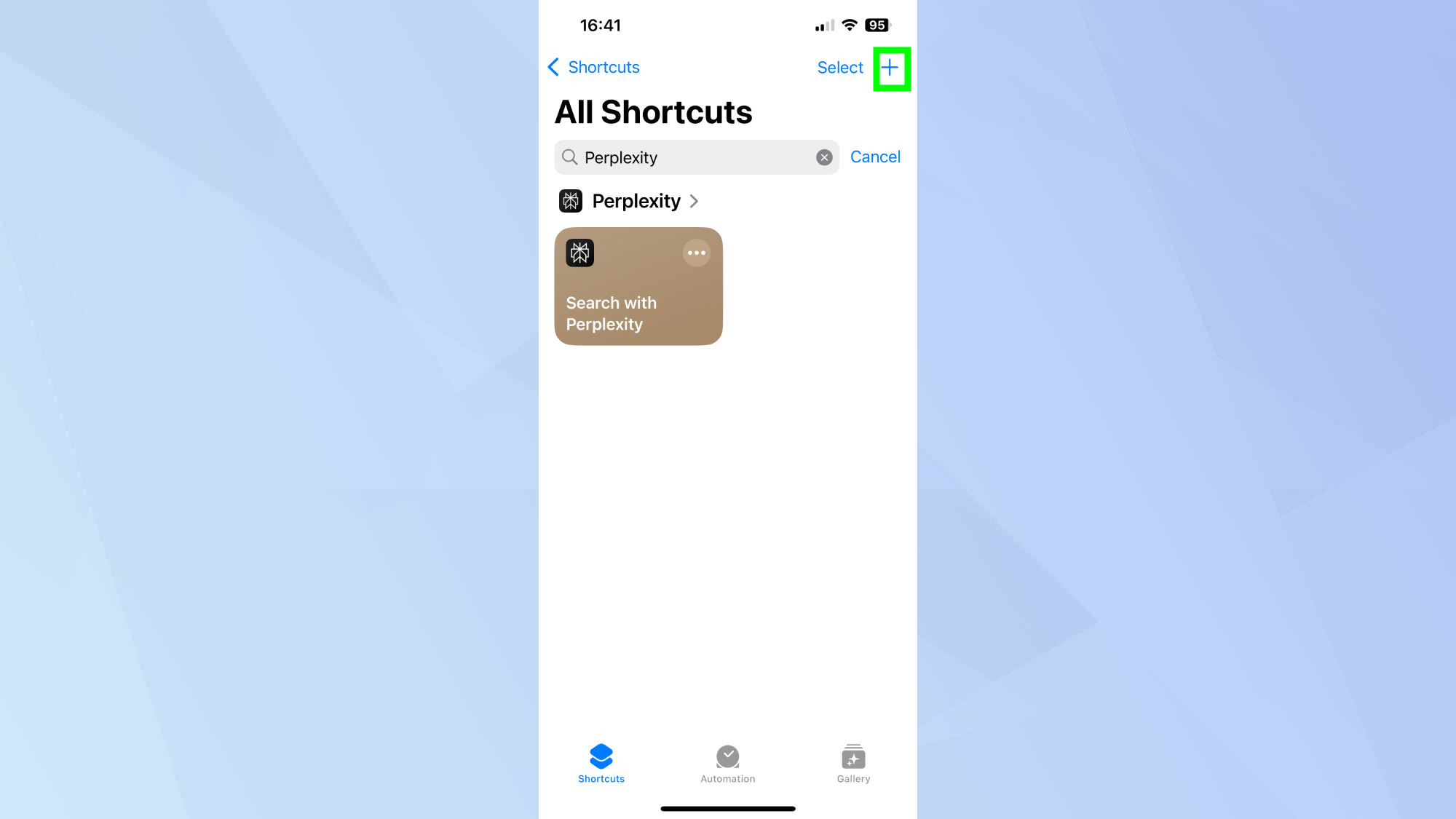
To create a new shortcut, tap the + sign.
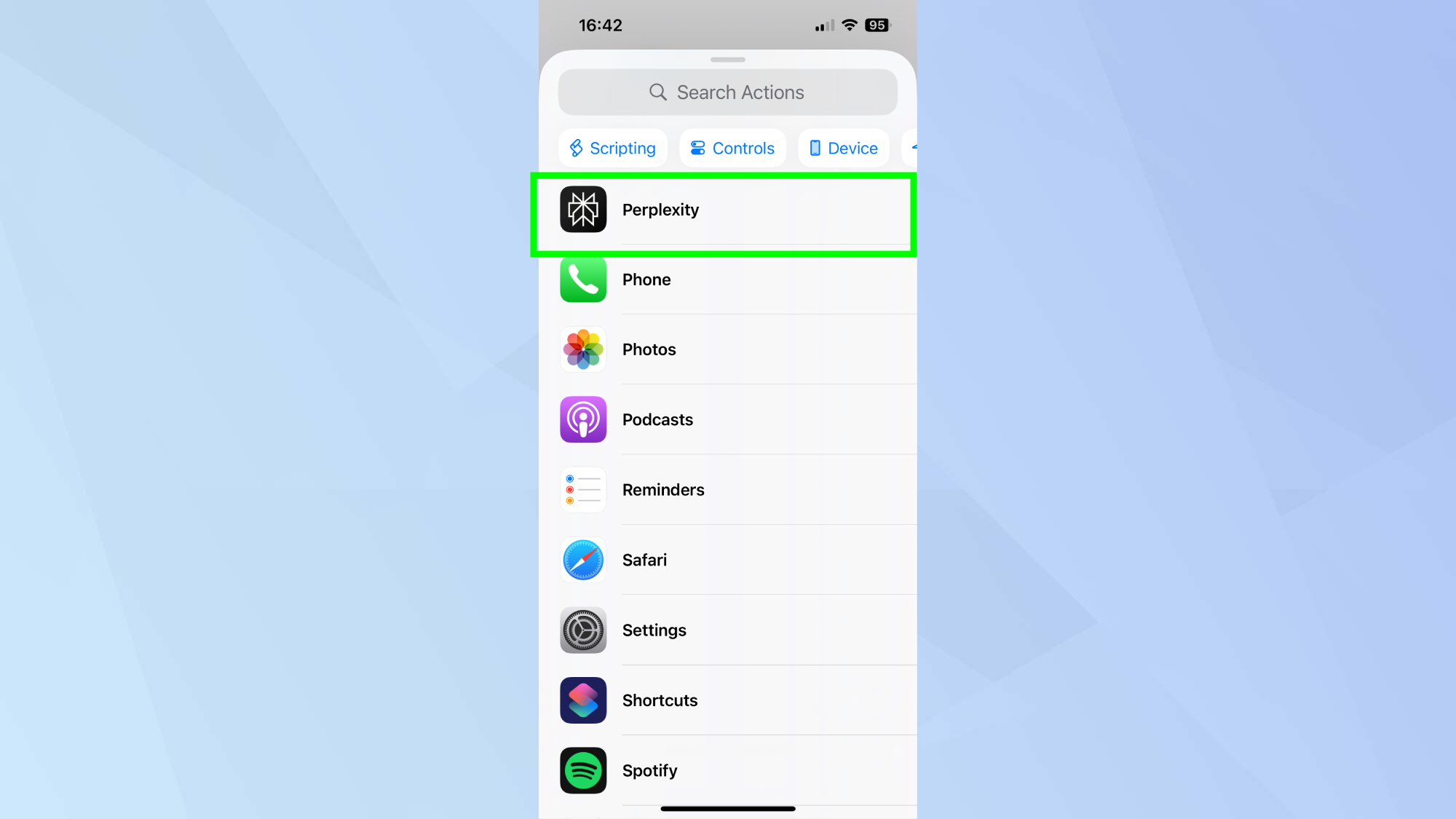
7. Find Perplexity
(Image: © Tom’s…