


By @windowscentral
Publication Date: 2025-12-23 12:04:00
On Windows 11, Microsoft has added the ability to manage pretty much all the virtualization features from the new “Virtual Workspaces” page available through the Settings app.
The software giant continues the slow process of porting legacy features to the Settings app, and even though there is still a lot of work to do, the last cumulative update for Windows 11 introduced a new version of the Settings app that includes a “Virtual Workspaces” page.
How to enable virtualization features on Windows 11
To enable virtualization features through Virtual Workspaces, use these steps:
- Open Settings.
- Click on System.
- Click the Advanced page on the right side.
- Click the Virtual Workspaces setting.
- (Option 1) Turn on the virtualization feature, including:

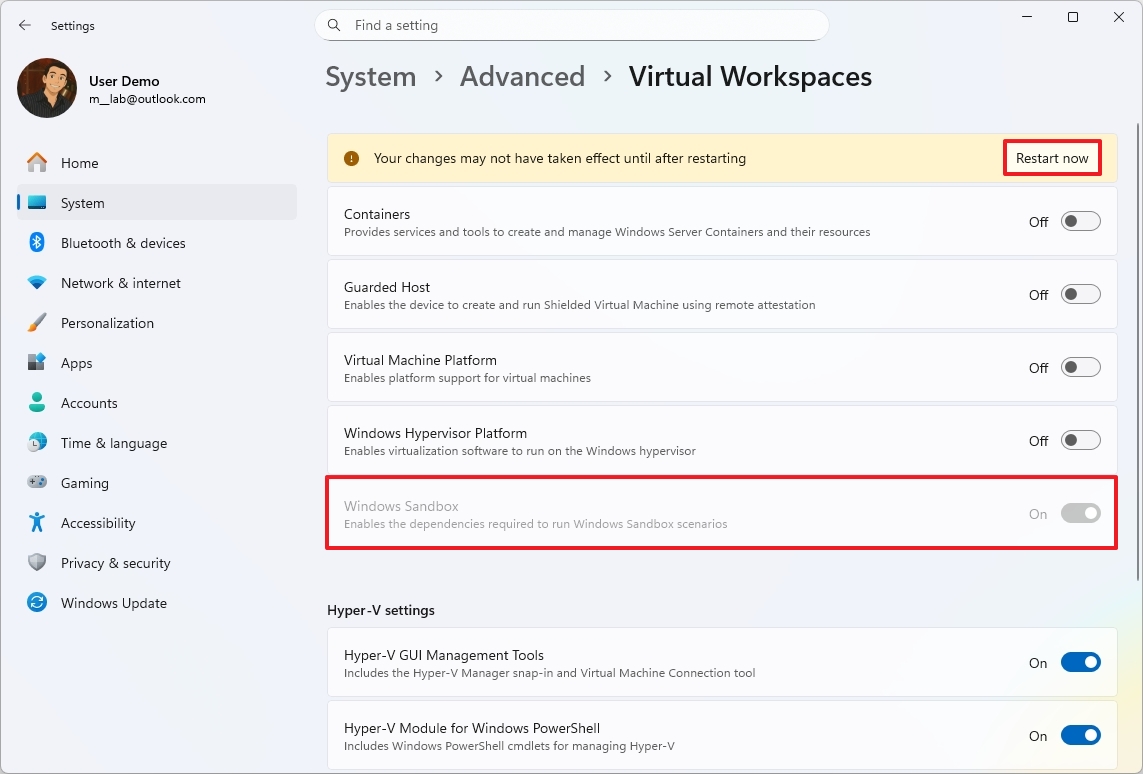
- Containers: Offers services and tools to create and manage Windows Server Containers and their resources.
- Guarded Host: Enables the computer to create and run a “Shielded Virtual Machine” using remote attestation.
- Virtual Machine Platform: Enables platform support for virtual machines
- Windows Hypervisor Platform: Enables virtualization software to run on the Windows…