Key Takeaways
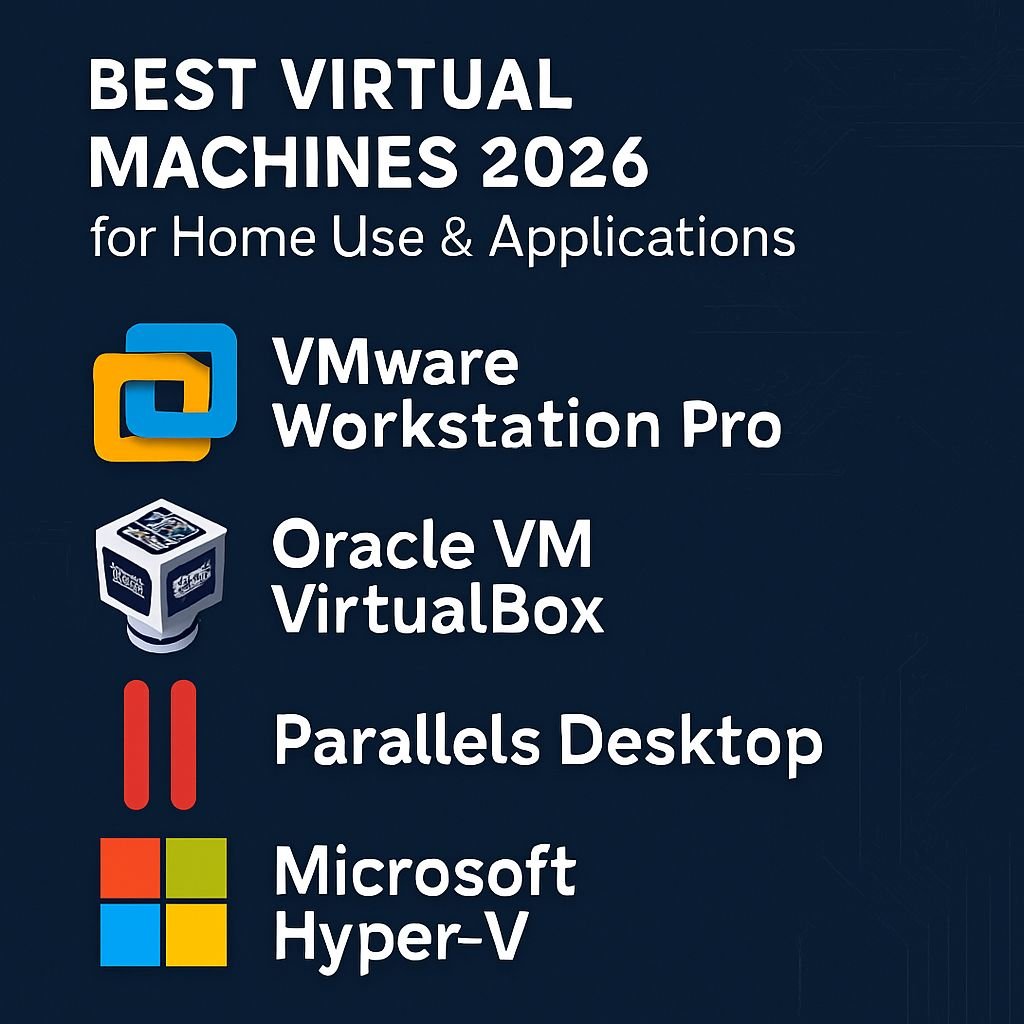
- Parallels Desktop remains the top VM choice for Mac users in 2026, offering seamless Windows integration with Apple Silicon optimization.
- VMware Workstation Pro 18 provides the most robust feature set for power users, particularly for those using multiple VMs simultaneously.
- Free options like VirtualBox 8.0 have significantly improved performance, making VM technology accessible to budget-conscious home users.
- Modern CPUs with 8+ cores are recommended for smooth VM performance, especially when running multiple virtual machines.
- VM snapshots have become an essential home user feature, allowing risk-free software testing and easy system restoration.
Virtual machines have evolved from niche technical tools to everyday utilities for home users in 2026. With modern hardware now powerful enough to handle virtualization seamlessly, VMs offer practical solutions for various home computing scenarios. Parallels Desktop continues to lead the market with its user-friendly approach and optimized performance on the latest hardware.
Why Virtual Machines Matter for Home Users in 2026
The computing landscape in 2026 has become increasingly fragmented, with specialized software often tied to specific operating systems. Virtual machines bridge this gap, allowing you to run multiple operating systems simultaneously on a single device. This technology has matured significantly, with performance improvements making VMs practical for everyday home use rather than just professional environments.
Run Multiple Operating Systems Without Buying New Hardware
One of the most compelling reasons to use a virtual machine is the ability to run different operating systems without investing in separate physical computers. Need to run a Windows-only application but love your Mac? A virtual machine provides the solution. With 2026’s advanced VM technology, you can seamlessly switch between macOS, Windows, and various Linux distributions on the same hardware with minimal performance penalties. This capability has become especially valuable as software ecosystems have become more specialized, with certain applications remaining exclusive to particular platforms.
Safely Test New Software Without Risking Your Main System
Virtual machines create an isolated environment that protects your main operating system from potentially harmful software. When you want to try a new application but aren’t sure if it’s trustworthy, installing it within a VM keeps your primary system safe. If something goes wrong, you can simply reset the virtual machine to a previous state or delete it entirely – without any impact on your host computer. This sandboxing capability has become increasingly important as software threats have grown more sophisticated in the mid-2020s.
Testing beta software, experimenting with system modifications, or even visiting questionable websites can all be done within the safety of a virtual environment. For home users who want to explore technology without risking their daily driver, VMs provide peace of mind that wasn’t practical on consumer hardware just a few years ago.
Preserve Access to Legacy Applications
As operating systems evolve, older software sometimes gets left behind. Virtual machines allow you to maintain access to legacy applications by running older operating systems in a controlled environment. This preservation capability has become crucial as both Windows and macOS continue to phase out support for 32-bit applications and older hardware architectures. Home users with specialized software, favorite games, or custom tools from previous decades can keep them running indefinitely through virtualization.
Many families maintain digital archives stretching back decades, and VMs ensure these materials remain accessible despite rapid technological change. Whether it’s running that specialized accounting software from 2015 or playing classic games from the early 2000s, virtual machines have become digital time capsules for preserving personal computing history.
Top Virtual Machine Software for Home Users in 2026
The virtual machine landscape has evolved significantly by 2026, with several standout options catering to different needs and budgets. Performance differences between top contenders have narrowed, making user experience and specific feature sets the primary differentiators. Each solution offers unique advantages depending on your host operating system and intended use cases.
1. Parallels Desktop 23 – Best Overall VM for Mac Users
Parallels Desktop continues to dominate the Mac virtualization market in 2026 with its latest iteration. Version 23 builds on the company’s long-standing reputation for user-friendliness while incorporating significant performance optimizations for Apple’s newest silicon. The standout feature remains Coherence mode, which lets Windows applications run alongside Mac apps without showing the Windows desktop. For home users who primarily need to run specific Windows applications on their Mac, Parallels provides the most seamless experience with minimal setup required. Learn more about how Microsoft’s AI advancements are influencing the virtualization landscape.
The latest version includes enhanced gaming support, improved battery efficiency, and deeper integration with macOS privacy features. Parallels Desktop now automatically optimizes resource allocation based on your usage patterns, ensuring maximum performance for the applications you use most frequently. This intelligence makes it particularly suitable for users who aren’t interested in manual configuration or technical details.
2. VMware Workstation Pro 18 – Most Powerful for Windows Power Users
VMware Workstation Pro remains the gold standard for Windows-based virtualization in 2026, offering unmatched stability and performance for power users. Version 18 introduces enhanced multi-VM coordination, allowing home users to create complex virtual networks with ease. The snapshot management system has been completely redesigned, making it simpler to maintain multiple restore points for each virtual machine.
What sets VMware apart is its robust handling of resource-intensive applications within virtual environments. The latest version includes improved GPU passthrough capabilities, allowing virtual machines to directly access your graphics card for near-native performance in applications ranging from CAD software to modern games. For home users who need to run multiple VMs simultaneously or require maximum performance, VMware’s sophisticated resource management makes it the clear choice.
The Pro version includes the ability to create encrypted VMs, clone machines, and set up virtual networks with advanced configurations. While these features come at a premium price point compared to competitors, the reliability and comprehensive support justify the investment for users who depend heavily on virtual machines.
3. Oracle VirtualBox 8.0 – Best Free Option
VirtualBox has evolved significantly by 2026, with version 8.0 addressing many of the performance limitations that previously relegated it to casual use. This completely free, open-source solution now offers a compelling alternative to paid options for home users. The completely redesigned user interface makes virtual machine creation and management more intuitive than ever, while maintaining the cross-platform compatibility that allows VirtualBox to run on Windows, macOS, and Linux host systems.
The most impressive improvement in version 8.0 is the enhanced 3D acceleration support, which now provides adequate performance for moderately demanding applications. While still not matching the seamless experience of Parallels or the raw power of VMware, VirtualBox has narrowed the gap considerably. For home users with occasional virtualization needs who don’t want to invest in premium solutions, VirtualBox provides all essential functionality without any cost barrier.
The active community support around VirtualBox means extensive documentation, troubleshooting guides, and pre-configured virtual appliances are readily available. This ecosystem makes it particularly well-suited for educational purposes or home users who enjoy tinkering with different operating systems.
4. QEMU 9.2 – Best for Linux Enthusiasts
QEMU has matured into a powerful virtualization solution by 2026, especially for Linux users who appreciate fine-grained control over their virtual environments. Version 9.2 brings significant usability improvements while maintaining the flexibility that makes QEMU popular among technical users. When paired with the KVM (Kernel-based Virtual Machine) hypervisor on Linux systems, QEMU provides near-native performance that rivals commercial solutions.
The command-line interface remains QEMU’s primary strength and weakness – offering unparalleled customization options but requiring more technical knowledge than consumer-oriented alternatives. However, several graphical front-ends have emerged that make QEMU more accessible to home users without sacrificing its powerful capabilities. For Linux enthusiasts who enjoy optimizing their systems and require precise control over virtual machine configurations, QEMU provides capabilities that other solutions can’t match.
5. Hyper-V – Best Built-in Windows Solution
Microsoft’s built-in virtualization platform has evolved into a surprisingly capable option for home users by 2026. Included at no additional cost with Windows 11 Pro and Enterprise editions, Hyper-V now features a streamlined setup process and improved integration with the Windows ecosystem. The latest updates include enhanced USB device support and more intuitive snapshot management, addressing previous limitations that affected home users.
The main advantage of Hyper-V is its deep integration with Windows and zero additional cost for compatible systems. Virtual machines run efficiently thanks to the Type-1 hypervisor architecture, which allows Hyper-V to communicate directly with hardware rather than operating through the host OS. For Windows-centric home users who need occasional virtualization without investing in third-party software, Hyper-V provides a capable solution that’s already installed on their system.
Hardware Requirements for Running VMs in 2026
Virtual machine performance is directly tied to your hardware capabilities. While virtualization technology has become more efficient, running multiple operating systems simultaneously still demands significant resources. Understanding these requirements helps ensure a smooth experience when using VMs at home.
Processor Needs: Why More Cores Matter
The processor remains the most critical component for virtualization performance in 2026. Modern CPUs with 8+ physical cores provide the best experience, allowing your system to dedicate cores directly to virtual machines while maintaining responsive host operation. The latest AMD and Intel processors include specialized virtualization instructions that dramatically improve VM performance compared to older hardware. When shopping for a virtualization-friendly system, prioritize core count over raw clock speed, as the ability to assign dedicated cores to each VM prevents resource contention.
For home users running a single VM alongside their host OS, a 6-core processor represents the practical minimum for smooth operation. Those planning to run multiple VMs simultaneously should consider 12+ core systems, which have become more affordable and power-efficient in recent years. The latest ARM-based processors have also made significant strides in virtualization support, making them viable options for less demanding virtualization scenarios.
RAM Requirements: Minimum vs. Recommended
Memory requirements have increased as operating systems have grown more resource-intensive. For comfortable virtualization in 2026, 16GB represents the practical minimum for running a single VM alongside your host OS. Each virtual machine requires its own dedicated RAM allocation, which is temporarily unavailable to your host system. For home users planning to run Windows 11 or the latest macOS in a VM, allocating less than 8GB to the virtual machine will result in noticeable performance limitations.
Power users who run multiple VMs simultaneously should consider 32GB or 64GB systems, which have become standard in mid-range computers by 2026. The good news is that memory prices have continued to decline, making these larger configurations more accessible to home users. When selecting a system for virtualization, choose the maximum RAM configuration you can afford, as this provides the greatest flexibility for future VM usage. For more insights on the latest trends in data management, check out data management news.
Storage Considerations: SSD vs. HDD Impact
Solid-state storage has become essential for responsive virtual machine performance. Running VMs from traditional hard drives in 2026 creates a noticeable lag that affects the entire user experience. Modern NVMe SSDs deliver the throughput necessary for VMs to boot quickly and operate responsively, even when multiple virtual machines access storage simultaneously. For home virtualization, 1TB of SSD storage represents a practical minimum to accommodate several VMs alongside your host operating system.
Virtual machine disk images can grow quite large, especially when using dynamic allocation with multiple snapshots. A dedicated secondary SSD for storing VM images provides the best combination of performance and capacity, allowing your primary drive to focus on host OS operations. Those working with numerous VMs should consider setting up a network-attached storage solution, which can provide flexible expansion options as your virtual machine library grows.
GPU Passthrough Options for Gaming VMs
Graphics acceleration within virtual machines has advanced significantly by 2026. For casual use and productivity applications, the virtualized GPU capabilities built into modern VM software provide adequate performance. However, home users interested in gaming or graphics-intensive applications within VMs should explore GPU passthrough technology, which gives a virtual machine direct access to a physical graphics card. This configuration requires a system with either multiple GPUs or a single card that supports hardware-level virtualization features.
The latest GPUs from NVIDIA and AMD include improved virtualization support, making split GPU configurations more practical for home users than in previous years. While setting up GPU passthrough still requires some technical knowledge, the process has been simplified in platforms like VMware Workstation Pro 18 and the latest QEMU releases. For those willing to navigate the setup process, the reward is near-native graphics performance within virtual environments.
Setting Up Your First Virtual Machine
Creating your first virtual machine has become significantly more straightforward by 2026, with automated wizards handling much of the technical complexity. Most VM platforms now intelligently detect the operating system you’re installing and suggest optimal configurations. Nevertheless, understanding a few key concepts helps ensure the best possible experience when setting up your first VM.
Choosing the Right Host and Guest Operating Systems
Your host operating system (the one running directly on your hardware) determines which virtualization platforms are available to you. Windows offers the widest range of options, including VMware, VirtualBox, and Hyper-V. macOS users typically choose between Parallels and VMware Fusion, with VirtualBox available as a free alternative. Linux hosts work well with VirtualBox, QEMU/KVM, and VMware Workstation. For first-time VM users, staying within your comfort zone is advisable—if you’re familiar with Windows, use Windows as your host and experiment with Linux as a guest.
When selecting a guest OS (the one running inside your VM), consider compatibility with your virtualization platform. Windows and most Linux distributions run well on all major VM platforms, while macOS guests have specific requirements and technically should only run on Apple hardware. Modern Linux distributions like Ubuntu and Linux Mint make excellent first guest OSes due to their modest resource requirements and straightforward installation processes.
It’s also important to consider whether you have valid licenses for any proprietary operating systems you plan to virtualize. Microsoft now offers specific Windows licensing options for virtual environments, making it easier for home users to legally run Windows in VMs. Many Linux distributions remain free to use, making them cost-effective choices for experimentation.
Amazon Workspaces
Amazon Workspaces offers a fully managed cloud desktop service that eliminates the need to maintain local virtualization infrastructure. In 2026, the service has evolved to provide ultra-low latency connections and adaptive resolution scaling that responds instantly to network conditions. Home users can access a complete Windows or Linux environment from virtually any device, including tablets and smartphones, making it perfect for those who need consistent computing environments across multiple locations. For more insights into how companies are adapting to technological advancements, you can read about IBM’s approach to hiring in the evolving tech landscape.
The most significant advantage for home users is the predictable subscription model that includes all maintenance, updates, and security patches. Rather than worrying about VM configuration or hardware requirements, you simply choose a performance tier that matches your needs. Parallels, the leader in local VM technology, has partnered with Amazon to create improved user experiences for Workspace subscribers, blending the best of cloud and local virtualization technologies.
Google Cloud VMs
Google’s cloud-based virtual machines have become increasingly accessible to home users by 2026. With pay-as-you-go pricing that activates only when you’re actively using the VM, Google Cloud has positioned itself as the most cost-effective option for occasional virtualization needs. Their newest “Home User” tier specifically targets individuals who need powerful computing environments for specific projects without enterprise-level pricing.
- Instant-start VMs that boot in under 5 seconds
- Pre-configured environments for creative applications, development, and gaming
- Local file syncing that maintains VM state between sessions
- Automatic hardware upgrades that scale with demand
The integration with Google’s consumer services makes their cloud VMs particularly appealing for home users already invested in the Google ecosystem. Your Drive files, photos, and other Google data are instantly accessible within the VM environment without any additional configuration. For creative professionals who occasionally need more computing power than their personal hardware can provide, Google’s cloud VMs offer on-demand access to professional-grade resources.
Google has also partnered with major software providers to offer pre-licensed application bundles, allowing home users to temporarily access expensive professional software without long-term commitments. This “software as a service” approach through virtualization represents one of the most significant shifts in how home users access specialized applications in 2026.
VM Limitations You Should Know
While virtual machines have become remarkably capable, they still have inherent limitations that home users should understand before committing to virtualization. These constraints stem from the fundamental nature of virtualization technology rather than specific software implementations, meaning they apply to varying degrees across all VM platforms.
Understanding these limitations helps set realistic expectations for what virtual machines can and cannot do effectively. In most cases, these constraints can be managed through proper configuration and hardware selection, but they’re important considerations when planning your virtualization strategy.
Performance Overhead
Even with modern hardware acceleration, virtual machines inevitably introduce some performance overhead compared to running an OS natively. This overhead typically ranges from 5-15% for CPU-intensive tasks and can be higher for graphics-heavy applications. The impact is most noticeable in timing-sensitive scenarios like competitive gaming or real-time audio processing, where even minor latency variations can affect the experience. While VM technology continues to improve, physics dictates that adding a virtualization layer between hardware and software will always incur some performance cost.
Hardware Compatibility Issues
Not all hardware devices work properly when accessed through virtual machines. While common peripherals like keyboards, mice, and standard USB devices usually function without issues, specialized hardware with custom drivers may not be recognized or function properly within a VM. This limitation affects equipment like professional audio interfaces, specialized medical devices, some gaming controllers, and hardware with copy-protection dongles. Before committing to a VM-based workflow, verify that all your essential peripherals have confirmed compatibility with your chosen virtualization platform.
License Considerations
Operating system and software licensing for virtual environments often differs from physical installations. Microsoft, for example, has specific licensing terms for Windows running in virtual machines, and violating these terms can create legal compliance issues. Some software packages also include license restrictions regarding virtualization or may implement technical measures that detect and restrict operation within VMs. Always review the licensing terms for any operating system or software you plan to virtualize to ensure you remain in compliance and avoid unexpected limitations. For instance, data management updates often highlight changes in software licensing and compliance that can impact virtualization strategies.
Future-Proofing Your Home VM Setup
Virtualization technology continues to evolve rapidly, making future-proofing an important consideration when investing in a VM solution. As hardware capabilities expand and software ecosystems become more complex, choosing flexible virtualization solutions that can adapt to changing needs becomes increasingly important. Several strategies can help ensure your virtual machine setup remains viable and valuable in the years ahead. For instance, Google’s investment in solar energy highlights the growing importance of sustainable infrastructure in supporting advanced virtualization technologies.
Subscription vs. One-Time Purchase Options
The virtualization market has largely shifted toward subscription-based licensing by 2026, though some one-time purchase options remain available. Subscription models typically provide continuous updates with the latest features and compatibility improvements, ensuring your virtualization solution evolves alongside operating system changes. VMware and Parallels both offer annual subscription plans that include all major version upgrades, while VirtualBox remains free but with a slower update cycle.
For most home users, the subscription approach provides better long-term value despite the ongoing cost. The rapid pace of hardware and operating system changes means that virtualization software requires frequent updates to maintain compatibility. One-time purchases typically become outdated within 2-3 years, often requiring a full repurchase to regain compatibility with the latest systems. However, if your virtualization needs are focused on running older, stable systems that won’t change, a one-time purchase option might make more financial sense.
Upcoming VM Technologies to Watch
Virtualization technology continues to advance rapidly, with several promising developments on the horizon that will impact home users. Hardware-enforced memory isolation is becoming standard in consumer processors, providing better security and performance for virtual machines. This technology allows VMs to operate with near-zero overhead for many tasks while maintaining complete isolation from the host system.
AI-enhanced resource allocation represents another significant advancement, with virtualization platforms now using machine learning to predict resource needs and optimize VM performance dynamically. Rather than manually configuring CPU, memory, and storage allocations, these systems continuously adjust resources based on actual usage patterns. This technology is particularly valuable for home users who may not have the technical expertise to properly tune VM configurations manually. For more insights on data management, check out the latest updates from Nutanix and other industry leaders.
Cross-platform VM portability has also improved dramatically, with standardized formats making it easier to move virtual machines between different hypervisors. This interoperability reduces vendor lock-in and provides flexibility to change virtualization platforms as your needs evolve. The Open Virtual Machine Format has been widely adopted, allowing VMs to be exported from one platform and imported to another with minimal reconfiguration.
Migration Paths Between Different VM Platforms
As your virtualization needs evolve, you may find yourself wanting to switch between different VM platforms. Modern virtualization solutions have significantly improved their migration capabilities, making it easier to move existing virtual machines to new platforms. Most major VM providers now support direct import of competitor formats, though some configuration adjustments may still be necessary after migration.
The most seamless migrations typically occur between related platforms, such as from VMware Workstation to VMware Fusion, or between different versions of the same product. Cross-vendor migrations (like moving from Parallels to VirtualBox) generally require more manual intervention. Before committing heavily to one virtualization ecosystem, investigate its export capabilities and compatibility with alternative platforms you might consider in the future.
Cloud migration paths have also become more standardized, allowing local VMs to be easily moved to cloud-based virtualization platforms when needed. This hybrid approach provides flexibility to start with local virtualization and transition to cloud-based solutions as requirements change. Most cloud providers now offer tools that automate the conversion and upload process from common local VM formats to their cloud infrastructure.
Frequently Asked Questions
Virtual machines generate many common questions from home users who are exploring this technology. The following answers address the most frequent concerns and misconceptions about using VMs in home environments in 2026. For example, Oracle often comes up in discussions regarding preferred platforms for virtual machines.
Can I run macOS in a virtual machine on a Windows PC?
Technically yes, but with significant legal and practical limitations. Apple’s license agreement for macOS specifically restricts the operating system to run only on Apple-branded hardware. While some virtualization platforms can technically run macOS on non-Apple hardware, doing so violates Apple’s terms of service. Additionally, macOS running on virtualized non-Apple hardware often encounters stability issues and performance limitations. For home users who need to run macOS, the legally compliant and most reliable approach remains using a Mac as your host system or investing in cloud-based Mac virtualization services that use actual Apple hardware in their data centers.
How much RAM do I need to run multiple VMs simultaneously?
- For running a single basic VM (like a Linux server): 16GB total system RAM
- For running a Windows VM alongside your host OS: 24GB total system RAM
- For running 2-3 VMs simultaneously: 32GB minimum, 64GB recommended
- For complex virtualization scenarios with 4+ VMs: 64GB minimum, 128GB ideal
RAM requirements stack additively because each virtual machine needs its own dedicated memory allocation. A typical Windows 11 VM requires 8GB for comfortable performance, while Linux distributions can often run well with 4GB. Your host system also needs sufficient remaining RAM to operate smoothly—typically at least 8GB reserved for the host OS.
Memory compression technologies have improved in modern VM platforms, allowing some over-commitment of RAM resources. However, these techniques introduce performance penalties when activated. For the best experience, ensure your total physical RAM exceeds the sum of all your VM allocations plus the host OS requirements.
DDR5 memory has become standard in 2026, offering higher bandwidth that benefits virtualization workloads. When building a new system for virtualization, prioritizing maximum RAM capacity over marginal CPU upgrades typically provides better overall VM performance.
Will virtual machines protect me from viruses and malware?
Virtual machines provide significant isolation that can contain malware infections within the VM environment, preventing them from affecting your host system. This containment makes VMs excellent for testing suspicious software or visiting untrusted websites. However, this protection isn’t absolute—sophisticated malware specifically designed to target virtualization systems can potentially escape the VM through vulnerabilities in the hypervisor, though such attacks remain relatively rare in consumer contexts.
For maximum security, combine VM isolation with standard security practices: keep both your host and guest operating systems updated, run security software in both environments, and avoid running the VM with administrator/root privileges unnecessarily. Additionally, using VM snapshots before conducting risky activities provides an easy recovery path—if infection occurs, you can simply revert to a clean snapshot rather than having to completely reinstall the guest OS.
Can I play modern games in a virtual machine?
Gaming in virtual machines has improved dramatically by 2026, but remains somewhat constrained compared to native performance. Basic and moderately demanding games now run acceptably in properly configured VMs with 3D acceleration enabled. VMware Workstation Pro 18 and Parallels Desktop 23 both offer enhanced gaming modes that optimize resource allocation specifically for game performance.
For serious gaming within a VM, GPU passthrough technology is essential. This configuration gives the virtual machine direct access to a physical graphics card, bypassing the virtualization layer for graphics processing. Systems with GPU passthrough can achieve 90-95% of native gaming performance, making most modern titles playable even at high settings. However, setting up GPU passthrough requires specific hardware support, including a system with either multiple GPUs or a single GPU that supports hardware-level virtualization features.
Latency-sensitive competitive games remain the weakest point for VM gaming. The additional processing layers inevitably add some input delay, which can be problematic for games where milliseconds matter. For casual gaming or single-player experiences, modern VMs provide a viable platform, but competitive gamers will still prefer native installations for minimum latency. For more insights on the latest developments, check out the data management news for updates from the tech world.
Cloud-based gaming VMs have also emerged as an alternative, offering access to powerful hardware through services like Shadow PC or GeForce NOW. These services handle the virtualization complexity on their end while streaming the gameplay to your local device, effectively separating gaming performance from your local hardware capabilities.
VM Gaming Performance Comparison (2026)
Configuration Performance vs. Native Best For Limitations Standard VM with shared GPU 40-60% Casual games, older titles Limited to medium settings, inconsistent framerates Optimized VM with enhanced 3D 60-75% Most single-player games May struggle with latest AAA titles at high settings VM with GPU passthrough 90-95% Modern AAA games Complex setup, requires specific hardware support Cloud gaming VM 85-95% High-end gaming without local hardware Requires excellent internet connection, monthly subscription
Do I need a special processor to run virtual machines efficiently?
Modern processors from both Intel and AMD include hardware virtualization extensions that dramatically improve VM performance. For Intel, look for processors with VT-x and VT-d support; for AMD, ensure the processor supports AMD-V and AMD-Vi. These technologies, standard on most CPUs released after 2020, allow the hypervisor to communicate directly with the processor for certain operations, significantly reducing virtualization overhead.
Beyond basic virtualization support, core count becomes the most important processor specification for VM performance. Each virtual machine essentially needs its own CPU cores to run efficiently. For home users planning to run multiple VMs simultaneously, processors with 8+ physical cores provide the best experience. The latest consumer processors with 16 or more cores have made smooth multi-VM setups accessible to home users without requiring server-grade hardware.
Clock speed remains important but secondary to core count for virtualization workloads. A 6-core processor running at 4.5GHz will generally provide worse multi-VM performance than an 8-core processor running at 4.0GHz. When selecting a processor specifically for virtualization, prioritize maximum core count within your budget rather than focusing on the highest clock speeds. Parallels Desktop has optimized its technology to leverage these multi-core processors, making it the perfect solution for running virtual machines on modern hardware.