Key Points
- VMware Workstation Pro lets you run several operating systems at once on a single physical computer without needing to reboot.
- Before you start the installation process, make sure your system meets the necessary requirements, including a 64-bit processor with virtualization capabilities turned on in the BIOS/UEFI.
- To get the best performance out of VMware, you’ll need to turn off competing virtualization technologies like Windows Hyper-V.
- Installing the software is a simple process, but it does require administrator privileges and roughly 2GB of disk space.
- Once you’ve set everything up correctly, you can use VMware to create isolated environments where you can test software, learn about new operating systems, or develop applications safely.
In the past, setting up a virtual machine was a complicated task that only IT specialists could handle. But VMware Workstation Pro has changed all that. It’s a powerful piece of software with an intuitive interface that’s easy for beginners to use, but it also has advanced features that professionals use every day. So whether you want to test out a new piece of software, learn about a different operating system, or create a sandbox environment, VMware gives you the perfect solution without needing to buy any extra hardware.
Virtual machines (VMs) are like computers within your computer, so you can try new things without messing up your main system. VMware Workstation Pro is the best in the business for desktop virtualization, with top-of-the-line features and rock-solid reliability. This tutorial will show you how to set it up from start to finish, so you can get the most out of this amazing tool.
Summary
VMware Workstation Pro is a virtualization software that lets you run multiple operating systems on one computer at the same time. This software creates separate environments where you can install and operate completely different operating systems without interfering with your main system. Whether you’re testing, developing, demonstrating, or learning, VMware provides the reliability and performance you need for personal or professional use.
Virtualization is all about flexibility. It allows you to create and run multiple virtual machines with different configurations, operating systems, and purposes – all from your existing hardware. This way, you can get more out of your current computer while also expanding its capabilities. For anyone looking to break free from the constraints of a single operating system, VMware Workstation Pro is a must-have tool.
Our step-by-step guide will walk you through everything you need to know to get your system ready and your first virtual machine up and running. By the time you’re done, you’ll have a fully operational virtual environment that you can use for any project you can think of, and you’ll have the know-how to manage and grow your virtual infrastructure as necessary.
Why VMware Workstation Pro is the Perfect Virtualization Tool for Beginners
VMware Workstation Pro is considered the gold standard in desktop virtualization, and for good reason. With over 20 years of development behind it, it has proven to be compatible with virtually every operating system you might want to run. This is a testament to its stability, performance, and a plethora of features that make it perfect for beginners, but also scalable as your skills advance. For those interested in the latest technological solutions, exploring AI technology news can provide insights into how virtualization is evolving.
VMware Workstation Pro is a step up from free options, providing business-level features such as snapshots (which let you save the state of a virtual machine and return to it later), cloning capabilities, and advanced 3D graphics support. These features make it especially useful for software testing, development work, and educational settings where dependability is key. The fact that you can run virtual machines in the background while you continue to work on your main system is a testament to the efficiency that VMware brings to multitasking workflows.
What You Need to Get Started
Before you jump into the installation process, you’ll want to make sure your system can handle running VMware Workstation Pro. Virtualization is a resource-heavy process, so it’s important to have the right hardware to ensure everything runs smoothly. A little bit of preparation can go a long way in preventing performance and compatibility issues in the future. For those interested in the latest technological advancements, you might want to explore AI technology news to stay updated on trends that could impact virtualization.
Apart from hardware specifications, you’ll also need to consider software configurations that might interfere with VMware’s operation. Proper preparation now will save you troubleshooting time later and ensure you get the most out of your virtual environment from day one. Let’s examine the specific requirements you’ll need to address.
- A 64-bit x86 processor (Intel or AMD) with virtualization extensions enabled
- A minimum of 4GB RAM (8GB or more recommended for running multiple VMs)
- Enough hard disk space for the VMware installation (approximately 2GB) plus space for virtual machines
- A compatible operating system: Windows 10/11 or a recent Linux distribution
- Administrator privileges on your host computer
System Requirements for Smooth VMware Operation
For the best performance, your computer should have a modern multi-core processor with virtualization technology enabled. Intel VT-x or AMD-V capabilities are critical and must be enabled in your system’s BIOS/UEFI settings before installing VMware. These hardware-level features significantly improve virtualization performance and enable certain advanced features like 64-bit guest operating systems.
How much memory you need depends on what you plan to do with your virtual machines. VMware Workstation Pro can run on a system with 4GB of RAM, but for practical use, you’ll typically need at least 8GB of RAM to comfortably run a single virtual machine alongside your host operating system. If you plan to run multiple virtual machines at the same time, or if you’ll be running resource-intensive applications within your virtual machines, you’ll probably want 16GB or more. Keep in mind that each virtual machine you create will need its own dedicated slice of your system’s physical memory.
Admin Rights and Permissions
VMware Workstation Pro needs to be installed with admin rights as it needs to make important changes to your system, such as installing drivers for virtual networking components. Make sure you’re logged in with an admin account before you start the installation. If you’re setting up VMware in a company, you may need to work with your IT department to get the permissions you need or have them do the installation for you.
Turning Off Other Virtualization Platforms
When you’re setting up VMware, you might run into problems if you have other virtualization platforms already installed or enabled on your computer. Windows features like Hyper-V, Windows Sandbox, WSL2, and Device Guard can interfere with how VMware works. Even though recent versions of VMware are better at working with these features, it’s still a good idea to turn them off before you install VMware to make sure it works as well as it can.
- On Windows, open “Turn Windows features on or off” from the Control Panel
- Uncheck Hyper-V, Virtual Machine Platform, Windows Hypervisor Platform, and Windows Sandbox
- Disable Memory Integrity in Windows Security settings if enabled
- Restart your computer to apply these changes
- Check that virtualization extensions are enabled in BIOS/UEFI settings
Step-By-Step Download and Installation Process
With your system properly prepared, you’re ready to begin the actual installation process. VMware makes this remarkably straightforward, but there are important decisions to make along the way that will affect how your virtualization environment operates. Follow these steps carefully to ensure a clean installation with optimal settings for your specific needs.
How to Download the Official VMware Workstation Pro
Always download VMware Workstation Pro directly from the official VMware website to ensure you’re getting authentic, malware-free software. Navigate to vmware.com, locate the Products section, and select Workstation Pro. The download page will detect your operating system automatically and offer the appropriate version. You’ll need to create a free VMware account if you don’t already have one, which also gives you access to knowledge base articles, forums, and customer support resources that may prove valuable later.
Trying Before You Buy and Academic Pricing
VMware Workstation Pro provides a 30-day free trial that allows you to use all features without restrictions. This gives you enough time to try out all the features and decide whether or not it’s right for you before you decide to buy. When you download, you can choose to start the trial or enter a license key if you’ve already bought one. VMware offers special academic pricing for students and educators, making the software more affordable for educational use.
When you purchase the full license for VMware Workstation Pro, you are making a one-time purchase that includes all updates within the major version number you’ve purchased. Although the price point (typically $199 for the standard license) may seem high compared to free alternatives, professionals consistently find the investment worthwhile for the superior performance, stability, and feature set. Many users report that the time saved troubleshooting and the enhanced productivity quickly justify the cost, especially when working on critical projects or in professional environments.
Executing the Installer with the Correct Settings
After downloading, right-click the installer file and select “Run as administrator” to start the installation process. The installer will first extract temporary files before launching the actual setup wizard. When prompted to accept the license agreement, take a moment to review it before proceeding. The setup will then ask about several important configuration options that deserve careful consideration.
Some of the most important choices you’ll make during the installation process involve where to install the program and how to set up your network. The installation directory is usually fine to leave as the default, unless you have specific needs for organization. When it comes to network options, the “Typical” choice should work for most people, as it installs all of the network components. If you have specific needs for your network or are worried about security, the “Custom” choice gives you more control. The installer will also ask you if you want to check for product updates when you start the program and if you want to join the Customer Experience Improvement Program. Both of these are good ideas, but they’re optional.
How to Fix Frequent Installation Issues
Even though VMware has a pretty straightforward installation process, you might run into some hiccups along the way. The most common hiccup is the installation failing because it’s clashing with other virtualization technologies. If the installer gives you an error about Hyper-V or another virtualization platform, go back to the steps in the previous section to make sure you’ve properly turned off all the technologies that are causing the conflict. Keep in mind that you’ll usually need to restart your system after you’ve turned these features off before you try to install VMware again.
Another common problem involves not having enough privileges. Even if you’re logged in as an administrator, some security software or company policies might prevent certain installation activities. Try temporarily turning off antivirus software during installation, or use the “Run as administrator” option when starting the installer. If you get error messages about missing prerequisites or incompatible system components, go to the VMware knowledge base, which has detailed troubleshooting guides for specific error codes and scenarios.
Getting Started
Once you’ve installed VMware Workstation Pro, you’ll want to spend some time setting it up. These initial settings will dictate how your virtual machines run. You’ll also have the chance to activate your license if you didn’t do so during installation. You can either enter the license you bought or start a 30-day trial.
Getting to Know the VMware Interface
At first glance, the VMware interface might appear intimidating with its several panes and tabs, but it’s actually quite user-friendly and gives you immediate access to all the tools you require. The main window is split into two sections: the VM library on the left, which lists all your virtual machines, and the content area on the right, which shows information about the VM you’ve selected. The toolbar at the top lets you perform common tasks like creating new VMs, tweaking settings, and handling snapshots.
Spend some time getting to know the menus and where different features are located. The “Edit” menu houses global preferences that will apply to all virtual machines, while specific VM settings can be accessed by right-clicking on the VM in question. The view menu allows you to tailor the interface to your liking, including showing or hiding the sidebar, tabs, and toolbars. A few minutes spent now familiarizing yourself with the interface will save you a lot of time as you start to work with your virtual machines.
At the bottom of the window, the status bar gives you important details about the VM you’ve chosen. It includes information on CPU and memory use, disk activity, and network status. You can use these details to keep track of performance and solve problems that might come up while the VM is running. If you’re new to this, the Home tab has shortcuts to tasks you’ll do often and links to documentation that can answer a lot of your first questions.
Creating Virtual Networks
Type of Network Explanation Optimal Use Case Bridged Links VM directly to the physical network When the VM needs to be seen as a different device on your network NAT Shares the host’s IP address with the VM General internet access while saving IP addresses Host-only Private network between the host and VMs Isolated environment with no outside access Custom Networking defined by the user Complex scenarios involving multiple networks Virtual networking is a robust feature that enables your VMs to communicate with each other, your host computer, and the outside world. VMware Workstation Pro sets up several virtual network adapters on your host system during installation, which you can configure by selecting “Edit” > “Virtual Network Editor” from the main menu. This tool requires administrator privileges to make changes since it modifies system network configurations.
There are three main types of networks, each with a different use. Bridged networking connects your VM directly to the physical network and gives it its own IP address. This is great for when you want the VM to appear as a separate machine on your network. NAT (Network Address Translation) allows your VM to share your host’s IP address. This is good for general internet access without the need for additional network configuration. Host-only networking creates a private network between your host and VMs. This is ideal for isolated environments where security is of utmost importance.
For most beginners, the default network configuration is good enough to get started because it comes with VMnet0 (bridged), VMnet1 (host-only), and VMnet8 (NAT). As you get more familiar with how virtualization works, you can create more custom networks for more advanced use cases. Keep in mind that these settings apply to all VMs on your system, so it’s a good idea to note down any changes you make for future reference.
How to Set Up Default Locations for Your Virtual Machines
When you first install VMware, it automatically saves your virtual machines in a folder titled “Virtual Machines” in your Documents. While this setup is fine for most users, you may want to change this if you’re running low on storage space or if you want to organize your VMs in a different way. To change the default location, click on “Edit” and then “Preferences.” From there, click on the “Workspace” tab. This is where you can choose a new default location for your virtual machines. Ideally, you should choose a location that has a lot of free storage space and performs well.
It’s a good idea to use a separate partition or secondary drive for your virtual machines, particularly if you intend to create several VMs or work with big disk images. SSDs offer much better performance for virtual machines than traditional hard drives, so if you have SSD storage, use it. Keep in mind that changing this setting will only affect new VMs you create. Existing ones will stay where they are unless you manually move them, following VMware’s official guidelines for moving virtual machines.
Building Your First Virtual Machine
Now that you’ve set the stage, it’s time for the fun part—building your first virtual machine. VMware provides two methods: the regular creation wizard for beginners and customized creation for more advanced users. For your first VM, the regular wizard offers a guided process that makes suitable choices while educating you about the critical components of a virtual machine. Click on “File” > “New Virtual Machine” or use the “Create a New Virtual Machine” button on the home screen to get started. For those interested in online learning resources, check out these expert opinions on learning online.
1. Selecting the Appropriate Guest Operating System
The first step in creating a VM is deciding which operating system you want to install. VMware supports a wide variety of guest operating systems, from the most recent versions of Windows and macOS to various Linux distributions and even older legacy systems. The wizard will ask if you have an installation disc (physical or ISO file) or if you want to install the OS later. If you select an ISO file, VMware will usually automatically detect the type of operating system, saving you from having to manually specify version details. For those interested in the latest technological advancements, check out the latest developments in AI technology.
2. Assigning CPU and Memory Resources
It’s critical to properly allocate resources for VM performance. The wizard will recommend default RAM and processor settings based on your chosen operating system, but these are typically conservative minimums. To ensure a smooth experience, consider assigning at least 4GB of RAM for Windows 10/11 VMs or 2GB for lightweight Linux distributions. In terms of processors, assigning at least 2 cores improves multitasking ability within the VM, even though the wizard may initially recommend just 1. Bear in mind that you can modify these settings later if necessary, but it’s simpler to start with sufficient resources than to troubleshoot performance problems. For a step-by-step guide, you can refer to this VMware Workstation Pro setup guide.
3. Setting Up Virtual Hard Disks
It’s time to set up your virtual machine’s storage space, which is provided through a virtual hard disk (VMDK file). The wizard will give you options to create a new virtual disk, use an existing one, or use a physical disk. If you’re a beginner, creating a new disk is the way to go. You’ll need to specify the disk capacity—consider allocating at least 50GB for Windows or 20GB for most Linux distributions to ensure sufficient space for the operating system, applications, and data. The option to store the virtual disk as a single file or split it into multiple files primarily affects portability; for home use on modern systems, a single file is generally preferable for simplicity and slightly better performance. If you’re interested in learning more about how technology is enhancing diagnostic capabilities, check out this article on Qure.ai’s lung cancer diagnostic advancements.
4. Setting Up Network Preferences
Network preferences dictate how your VM will connect to networks and the internet. The default NAT setting works well for most situations, allowing your VM to access the internet through your host’s connection without requiring additional network setup. If you need your VM to appear as a separate device on your network with its own IP address, choose bridged networking instead. For security-sensitive testing or development environments where network isolation is important, host-only networking limits connections to just between your host and VMs, with no external access.
5. Installing the Guest OS
Once you’ve finished the wizard, your VM is ready but still requires an operating system. If you supplied an ISO file during setup, VMware will automatically link it to the virtual CD/DVD drive. Power on the VM by clicking the green “Play” button, and the VM will boot from this virtual installation media. The installation process inside the VM is the same as installing on physical hardware—just follow the usual installation steps for your chosen operating system. VMware sends your mouse and keyboard inputs directly to the VM when it’s the active window, so you can interact with it naturally.
While installing, you might experience a different mouse movement within the VM or a limited display resolution. Don’t worry, these limitations are only temporary and will be resolved once you install VMware Tools, which we’ll discuss later. Just go ahead and finish the operating system installation as you normally would, including creating user accounts and setting initial settings. After the installation, your guest OS will restart in its usual environment, and you’ll have a completely operational virtual machine at your disposal.
Key VM Management Skills
After getting your initial virtual machine up and running, it’s important to understand how to manage it effectively. VMware Workstation Pro offers a broad range of controls for managing virtual machine states, which are accessible from the toolbar when a VM is selected. Understanding these basic operations is key to performing more complex virtualization tasks and will help you make the most of your virtual environments.
The controls for virtual machines are similar to those of physical computers, but with added features that showcase the benefits of virtualization. Knowing when to use each feature can help keep your virtual machine stable and protect your work while making the most of the virtual environment. Try out these controls on a test virtual machine before using them on virtual machines with important data or configurations.
How to Start, Pause, and Turn Off VMs
Starting a VM is as easy as choosing it from the library and clicking the “Power On” button (green play icon). Once it’s on, you can interact with the VM just like a real computer. When you need to pause your work, VMware gives you several options that go beyond what real hardware can do. The “Suspend” option (pause button) saves the VM’s current state to disk and frees up its resources. It’s like putting a computer to sleep, but without using any power. This lets you pick up right where you left off, even if it’s days or weeks later.
You have two main options for turning off your VM: “Shut Down Guest” and “Power Off”. The “Shut Down Guest” option is like pressing the power button on a physical computer, it shuts down the operating system in an orderly manner. The “Power Off” option is like pulling the plug on a physical computer, it immediately cuts power to the VM. Unless the VM is not responding, you should always use the “Shut Down Guest” option to prevent data corruption. VMware also provides a “Reset” option, which is like pressing the reset button on a physical computer. This can be useful if the VM is not responding, but you should use it sparingly to avoid potential data loss.
When you’re working with multiple VMs at the same time, it’s easy to switch between them. Just click on the window for the VM you want to control. If you want to stop controlling a VM and return to your host system, press Ctrl+Alt. The more you use the VMware interface, the easier this will become.
Creating and Managing Snapshots
One of the most useful features of VMware is the ability to take snapshots. Snapshots allow you to save a VM’s exact state at a certain point in time and return to it later if necessary. You can think of snapshots as save points in a video game—they save the entire VM state including memory, settings, and disk data. To take a snapshot, select the VM and click the camera icon in the toolbar or go to VM > Snapshot > Take Snapshot in the menu. For those interested in learning more about technology, consider exploring AI technology news and its latest developments.
When you’re making big changes to a VM, like installing new software, applying updates, or making configuration changes that might not go as planned, this feature is incredibly helpful. If something goes wrong, you can revert to the snapshot in seconds rather than spending hours troubleshooting or rebuilding. For example, before installing unfamiliar software or making system changes, take a snapshot as an insurance policy against potential problems.
Remember that snapshots use more disk space because they monitor changes made after the snapshot point. They also have a minor effect on performance when they’re active. That’s why snapshots are better used as temporary safety measures instead of long-term backup solutions. VMware comes with a snapshot manager (VM > Snapshot > Snapshot Manager) that gives you a visual tree of all snapshots for a VM, so you can easily manage, delete, or go back to specific points in your VM’s history.
File Sharing Between Your Computer and Your Virtual Machine
VMware offers several ways to move files between your computer and your virtual machine. Once you’ve installed VMware Tools, the easiest way to do this is by using drag-and-drop. This feature works much like moving files between folders on your computer, so it’s easy to understand and use.
If you want to share files on a more permanent basis, you can set up shared folders. These make certain directories from your host system appear as network drives within the VM. To set this up, you need to select VM > Settings, choose the Options tab, and then select Shared Folders. This gives you constant access to host files without having to keep transferring them. This is perfect for development work where files are often changed on both systems.
Should the built-in methods not be sufficient for your needs, you can also try traditional network sharing or cloud storage as an alternative. Many users find that using services like Dropbox or OneDrive installed in both host and guest creates a seamless experience for working with the same files across systems. Each approach has advantages in different scenarios, so it is recommended that you experiment to find what works best for your specific workflow.
How to Install VMware Tools for Improved Performance
Once you’ve set up your first virtual machine and installed a guest operating system, you might notice some differences compared to a physical computer. The display resolution might be stuck on a low setting, mouse integration might not be smooth, and overall performance may seem slow. This is because the guest operating system doesn’t have the specific drivers it needs to work best in a virtual environment. VMware Tools can fix these problems by providing the necessary drivers and utilities.
The Importance of VMware Tools
VMware Tools is not just an optional addition—it’s a vital package that improves the virtual machine experience from elementary to smooth. Without Tools installed, your VM uses basic drivers that don’t benefit from VMware’s enhancements, leading to a significant drop in performance, limited functions, and a less user-friendly experience. The package includes enhanced graphics drivers that support higher resolutions and better display performance, precision mouse drivers for effortless movement between host and guest, and upgraded network drivers that increase transfer speeds between virtual machines. For a detailed guide on setting up VMware, check out this step-by-step setup guide.
How to Install on Various Operating Systems
The installation process for VMware Tools may vary slightly depending on your guest operating system, but VMware has made the process as straightforward as possible across all platforms. If you are using Windows VMs, with your virtual machine powered on and logged in, select VM > Install VMware Tools from the menu. This will mount a virtual DVD containing the installer in your guest OS. If AutoRun is enabled, the installation wizard will launch automatically; otherwise, you will need to open File Explorer and run the setup program from the virtual DVD.
Linux guests need a few more steps, but the process is largely the same. After you select VM > Install VMware Tools, the virtual DVD shows up as a mounted volume. You will need to extract the installer package from this volume and run the appropriate script for your distribution. Most modern Linux distributions have automated tools that make this easier, and you might see a notification suggesting the installation of additional drivers.
If you’re installing the Tools on a macOS guest, the installer will show up as a disk image file. You can double-click it to mount it. Then, run the installer package and follow the prompts. You’ll need to restart your computer to finish the installation. Because macOS has stricter security settings than other platforms, you might need to approve security exceptions during the installation process.
Here’s a list of the improvements you’ll see after installing VMware Tools:
- Better graphics performance with 3D acceleration support in guest OSes
- Smooth mouse integration between host and guest systems
- Automatic clipboard sharing for copying text and files between systems
- Time synchronization to keep the guest OS clock accurate
- Improved shutdown coordination between host and guest systems
Once you’ve installed VMware Tools and restarted your VM, you’ll notice the improvements right away. The display will automatically adjust to the window size, mouse movement will be smooth between host and guest, and overall performance will be noticeably better. These enhancements make the virtual machine feel less like a remote system and more like an integrated part of your computing environment, making it much more practical for daily use.
Practical Projects for Your New VM
Now that your virtual machine is set up and VMware Tools are installed, you can start using your new virtual environment. Virtual machines are ideal for situations where you need isolation, want to experiment, or need multiple operating systems. Now that you’ve taken the time to set up VMware Workstation Pro correctly, you can use this powerful tool to do things you couldn’t do with just one operating system.
The projects we’ll be going over are for all skill levels, from beginner to advanced. They’ll help you gradually get better at virtualization while also accomplishing useful tasks. Each project shows off a key strength of virtualization and gives you practical experience that will make you more confident in using VMware’s features. Think of these suggestions as starting points that you can adapt to your specific interests and needs.
Here are some ideas for projects you can try:
• Set up a “clean room” to test out software you’re not sure about
• Build a web development environment that includes multiple operating systems
• Build your own lab for learning about server administration
• Create a secure browsing environment for tasks that require extra security
• Try out different Linux distributions
• Keep legacy applications running in their original environmentVirtualization is a powerful tool that can be used to solve a wide range of problems. Many people start using VMware for simple tasks and soon find that it becomes an integral part of their daily workflow. As you get more familiar with the basic concepts of virtualization, you’ll probably find new and innovative ways to use it to meet your specific needs, whether you’re a professional, a student, or just someone who enjoys working on personal projects.
Trying Out New Software Safely
Virtual machines are often used to create a safe space for testing software that you’re not familiar with or that could potentially be harmful. If you install and run a program that you’re not sure about in a virtual machine, rather than on your main system, you’re creating a safety net that will stop malware or badly written software from affecting your host computer. This is particularly useful if you’re testing beta software, checking out programs from sources you don’t know, or trying out changes to your system that might have unexpected results.
Setting up a dedicated testing VM is as easy as pie: all you need to do is install your favorite operating system from scratch, take a snapshot right after you’ve finished setting it up, and then install the software you want to test. If something doesn’t go as planned, you can just go back to your clean snapshot and try again without any long-term effects. Many IT professionals keep a few testing VMs with different operating system setups to make sure new software will work in various environments before they roll it out.
When testing possibly harmful software, it’s best to set up your testing VM with no shared folders, disable drag-and-drop, and use host-only networking to stop internet access for the highest level of security. This way, you’ll create a real sandbox environment where even the most harmful malware will be trapped inside the virtual machine, and won’t be able to reach your host system or network. Don’t forget to take snapshots often during testing so you can check the software’s behavior at different stages of installation and use.
- Create a clean baseline snapshot before installing any test software
- Use host-only networking to prevent malware from reaching the internet
- Disable shared folders and clipboard sharing during high-risk testing
- Take multiple snapshots during complex installation processes
- Document your findings for future reference
Learning New Operating Systems Risk-Free
Virtual machines provide the perfect playground for exploring new operating systems without the commitment of dedicated hardware or dual-boot configurations. Whether you’re a Windows user curious about Linux, a developer needing to test on different platforms, or an IT professional preparing for certification exams, VMware makes it simple to run virtually any operating system alongside your primary environment. This approach eliminates the risk and inconvenience of repartitioning drives or potentially disrupting your main system.
If you’re a beginner and this is your first time using Linux, I recommend starting with user-friendly distributions like Ubuntu, Linux Mint, or Elementary OS. These distributions have familiar graphical interfaces and extensive documentation that make it easier to transition from Windows or macOS. I suggest allocating at least 2GB of RAM and 20GB of disk space to ensure a responsive experience. Also, don’t forget to install VMware Tools for the best integration. The ability to experiment freely without fear of “breaking” anything encourages exploration and accelerates the learning process.
For those who are more advanced, you may want to consider creating a multi-VM lab environment where several machines work together to simulate a small network. For instance, you could create one VM running Windows Server as a domain controller, another as a workstation joined to the domain, and a third running a Linux server providing web services. This approach is incredibly useful for IT professionals studying for certifications like MCSA, RHCE, or CompTIA Server+, allowing them to gain hands-on experience with complex scenarios without requiring multiple physical machines.
Building a Separate Development Environment
It is common for developers to struggle with maintaining the same environments across development, testing, and production stages, or managing projects with conflicting dependencies. Virtual machines are great at resolving these issues because they provide separate, repeatable environments that can be version-controlled and shared with team members. By using VMware snapshots, you can instantly change between different project configurations or keep separate environments for different clients without the burden of reinstalling software or reconfiguring systems.
What’s Next in Your Virtualization Journey?
Once you’ve mastered the basics of operating virtual machines, there are plenty of advanced features in VMware Workstation Pro for you to explore. You might want to try out VM teams, which let you manage groups of related VMs together, cloning, which lets you create identical copies of existing machines, or linked clones, which save disk space by sharing unchanged data between similar VMs. If you’re a networking enthusiast, you can play around with advanced networking configurations to test complex multi-tier applications, and performance tuning options to optimize resource allocation for specific workloads. The skills you’ve learned in desktop virtualization also lay the groundwork for exploring enterprise virtualization platforms like VMware vSphere, which can open up career opportunities in cloud computing and infrastructure management.
Common Questions
We’ve touched on the basics of how to set up and use VMware Workstation Pro in this guide. But if you’re new to virtualization, you might have some specific questions that need clear answers. This FAQ covers the questions and issues that come up most often when you’re starting out with virtualization.
Keep in mind that virtualization technology is a rapidly changing field, with VMware frequently rolling out new features and updates. By joining VMware’s user community forums, you can stay up-to-date on the latest in desktop virtualization and get ongoing support. These communities often share helpful tips, custom configurations, and solutions to common problems that go beyond what’s covered in the official documentation.
Is it possible to run VMware Workstation Pro on a laptop?
Of course! VMware Workstation Pro performs admirably on modern laptops with the right specifications. Look for a laptop with at least a quad-core processor, 16GB of RAM, and an SSD to ensure smooth performance when running virtual machines. Battery life will be reduced when running VMs, so keep your power adapter handy for extended sessions. Many laptop users find it beneficial to adjust VMware’s memory settings to be more conservative when running on battery power, which you can configure in Edit > Preferences > Memory. For frequent travelers who use VMs extensively, consider laptops specifically marketed for development or engineering work, as these typically offer the performance characteristics that virtualization demands.
How much memory do I need to operate several virtual machines at once?
The amount of memory you’ll need is determined by the number of VMs you want to run at the same time and the requirements of each guest operating system. In general, you should allocate at least 4GB for Windows 10/11 VMs, 2GB for basic Linux desktops, and 1-2GB for server installations that don’t have GUI environments. To avoid excessive swapping to disk, which can significantly slow down performance, your host system should keep at least 4GB for its own operations.
When you’re figuring out how much RAM you’ll need, add together the RAM requirements for all the VMs you’ll be running at the same time. Then add 4GB for the host. That’s the minimum amount of system memory you should have. For instance, if you’re going to run two Windows 10 VMs (which need 4GB each) and one Linux VM (which needs 2GB) all at the same time, you should have at least 14GB of RAM (4+4+2+4). If you’re going to run programs that use a lot of memory in the VMs, you’ll need to adjust these estimates up. VMware has memory management features like ballooning and memory sharing that can help you use your memory more efficiently, but the most important thing for good performance is having enough physical RAM.
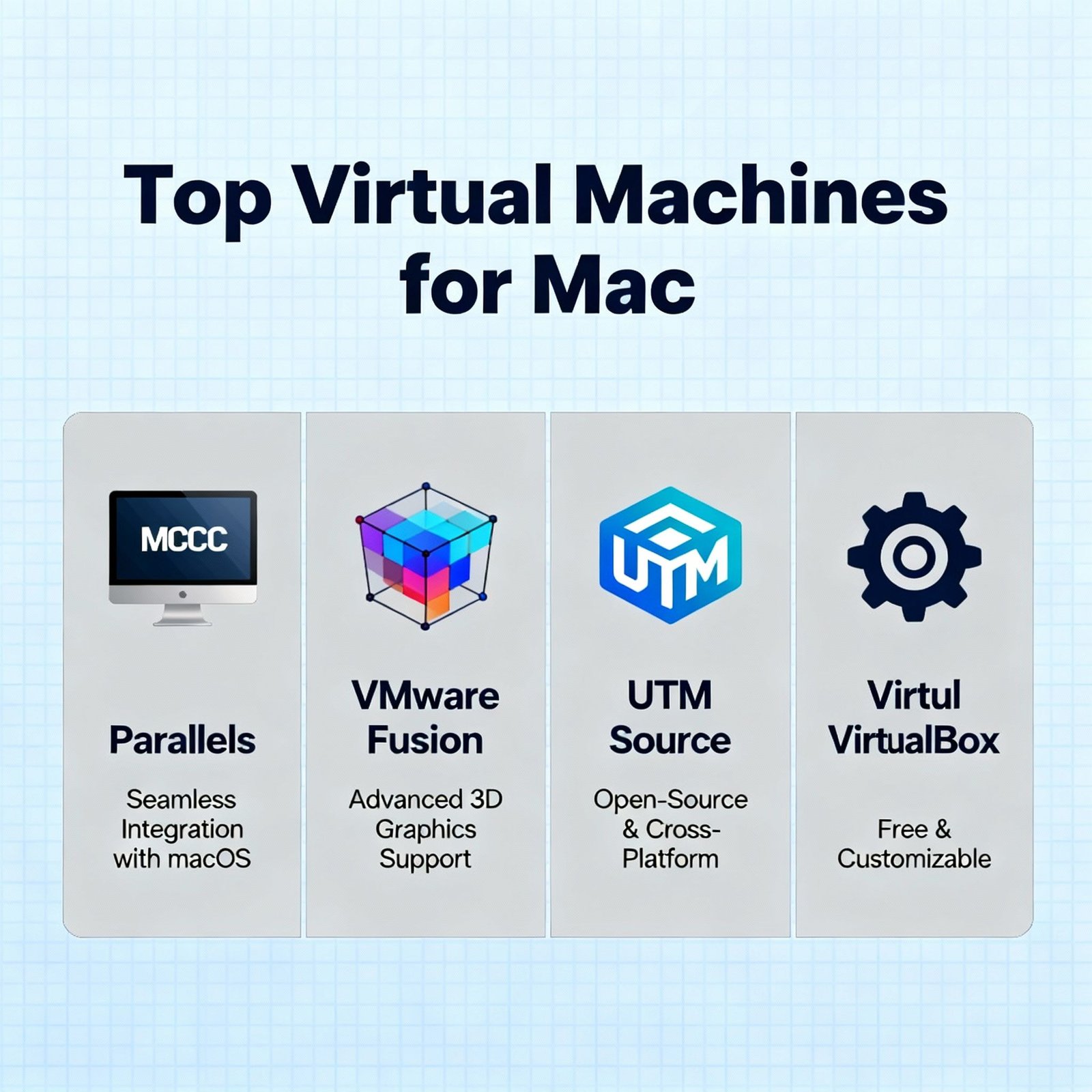
Why is VMware Workstation Pro a better choice than VirtualBox?
When it comes to performance, stability, and feature richness, VMware Workstation Pro typically outperforms VirtualBox, especially for professionals or those who use virtualization intensively. Although VirtualBox is free and open-source, VMware’s well-established development and enterprise-centric focus give it the edge in 3D acceleration, snapshot management, and overall VM performance. VMware also has a better track record of supporting the latest operating systems, often releasing compatibility updates sooner when new versions come out. For casual users who only need basic virtualization, VirtualBox might be enough. However, professionals who use virtualization daily often find that the benefits of VMware outweigh the cost of the license, particularly when you consider the time saved through improved performance and fewer technical problems.
Is it possible to transfer my virtual machine to a different computer?
Absolutely, VMware virtual machines are incredibly portable. The entire VM is held within a group of files that you can copy to external storage or across a network to another computer that has VMware Workstation, Fusion (for Mac), or even free products like VMware Player installed. The main files you need to transfer are the configuration file (.vmx), virtual disk files (.vmdk), and any snapshot files if they exist. It’s advisable to fully shut down a VM before moving it, rather than suspending it, to ensure consistency.
While transferring VMs between different host systems, keep in mind the hardware compatibility considerations. VMs created on newer VMware versions may have to be downgraded to run on older versions, and the virtual hardware settings might need to be adjusted if the VM is being moved between significantly different host systems. VMware includes tools to help with these transitions, like the “Prepare for Encryption” option that ensures VMs can be moved securely. For large VMs, consider using VMware’s OVF (Open Virtualization Format) export/import feature, which creates standardized, compressed packages that are easier to transport.
Moving Method Pros Cons Best For Direct file copy Simple, preserves all settings Large files, no compression Quick transfers between similar systems OVF Export/Import Compressed, standardized format Takes time to export/import Distribution or archiving VMs VMware vCenter Converter Can convert physical to virtual More complex setup Migrating physical machines to VMs For routine transfers between your own computers, such as between work and home machines, consider setting up a shared network location accessible to both systems where you can store your VMs. This approach simplifies the process of keeping VM states synchronized between locations. Some users even run their VMs directly from external SSDs connected via USB 3.0 or Thunderbolt, providing a truly portable virtualization solution without needing to copy files between computers. For a step-by-step guide on setting up VMware Workstation, check out this setup guide.
Will my computer slow down a lot if I run VMs?
How much running virtual machines will affect your computer’s performance depends a lot on how you allocate resources and how many VMs you’re running at the same time. If you set things up correctly on hardware that’s up to the task, running a single VM usually won’t slow down most of what you’re doing on your computer in a way you’d notice. The important thing to remember is that VMware sets aside the resources you specify for VMs while they’re running, which means those resources won’t be available to your computer until you suspend or shut down the VM.
VMware’s scheduler usually manages CPU impact well, as it smartly shares processor time between the host and guests. The most direct impact is memory allocation—any RAM assigned to a VM becomes unavailable to the host while that VM runs. That’s why it’s important to have enough total RAM for smooth performance. Storage performance varies a lot; VMs running on SSDs experience much less performance penalty than those on traditional hard drives, where disk I/O can become a big bottleneck.